

Strapi CMS
Global Settings — Control Your Store Without Code
The Global Settings section in Strapi CMS allows you to change the overall look, layout, and behavior of your entire store from a single panel — without touching any code. Changes apply globally across all pages.
1. Basic Website Settings
To change the overall look of the site, go to Storefront Setting under Single Types.
- Convert to Toman (convertToToman): By turning this on, all prices received from Medusa (which are in Rials) will be displayed in Tomans by dropping one zero.
- RTL (isRtl): Controls the site direction for right-to-left languages like Persian.
- Modular Settings (Dynamic Zones): In the
modulessection, click the+ Add a component to modulesbutton to add and change settings for different sections likeHeader Settings,Footer Settings, orTheme Settings.
🌐 Main Site Header (Header Settings)
Header Style (headerStyle)
Fullscreen

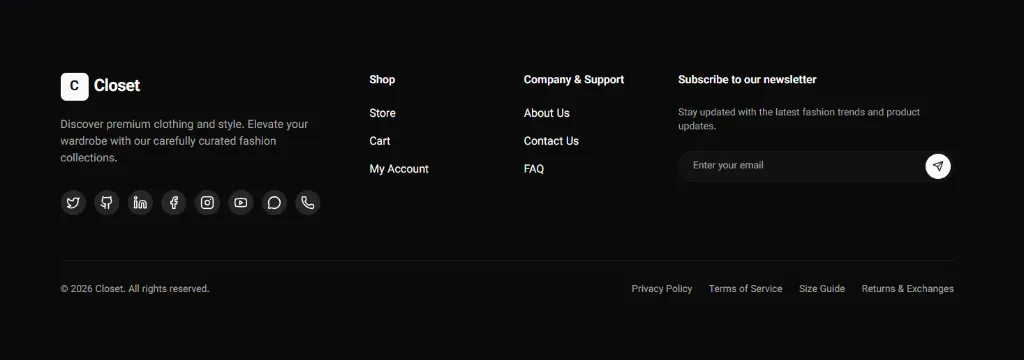
🌐 Main Site Footer (Footer Settings)
Footer Style (footerStyle)
Fullscreen
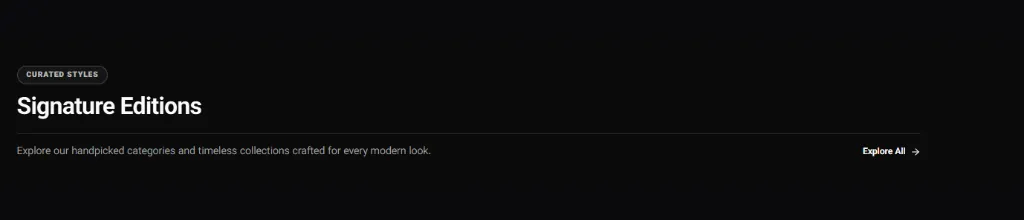
🧩 Section Headers Style
Fullscreen
🎨 Theme Color Palettes (Theme Settings)
🖌️ Adding a Color Palette (via Coding)
Note that color palettes are not downloadable component files and are defined directly via CSS variables in the source code. To add a new color palette, follow the steps below:
- Define CSS color variables (like
--background,--foreground, and--primary) for your new theme in theglobals.cssfile (inside a new class or data-attribute). - In the
tailwind.config.jssettings, add and map your custom colors as needed. - Add the new value to the Schema structure of the Strapi panel for the palettes field so the admin can select it.
Light Theme (lightPalette)
Light Default Palettehsl(0 0% 100%)
BG
#FFFFFF
Primary
#171717
Secondary
#F5F5F5
Accent
#F5F5F5
Dark Theme (darkPalette)
Dark Default Palettehsl(0 0% 3.9%)
BG
#0A0A0A
Primary
#FAFAFA
Secondary
#262626
Accent
#262626
📱 Store Pages Settings
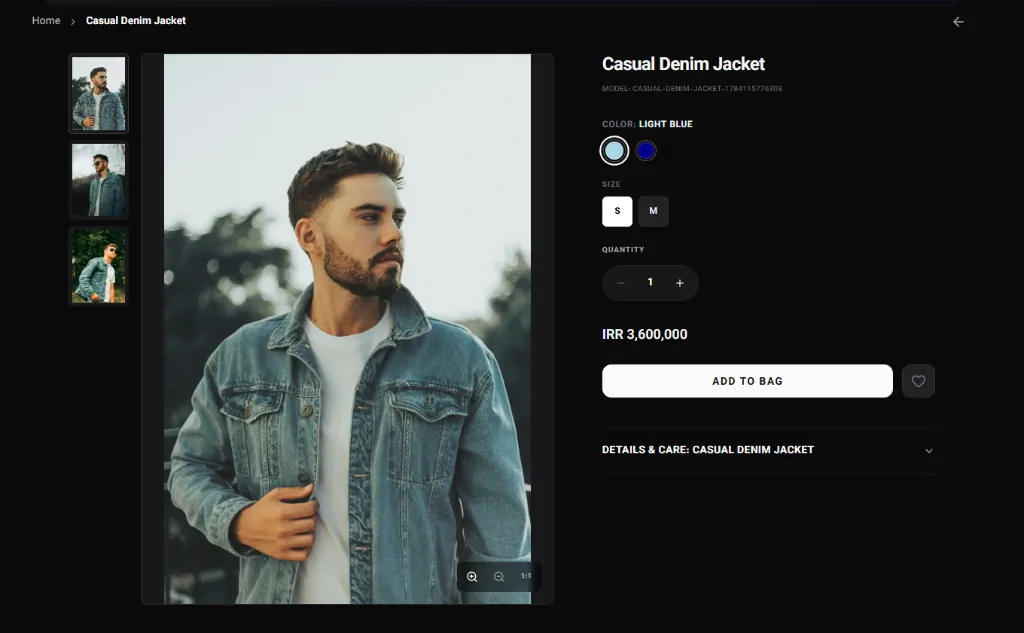
Single Product Page (Product Details)
Fullscreen
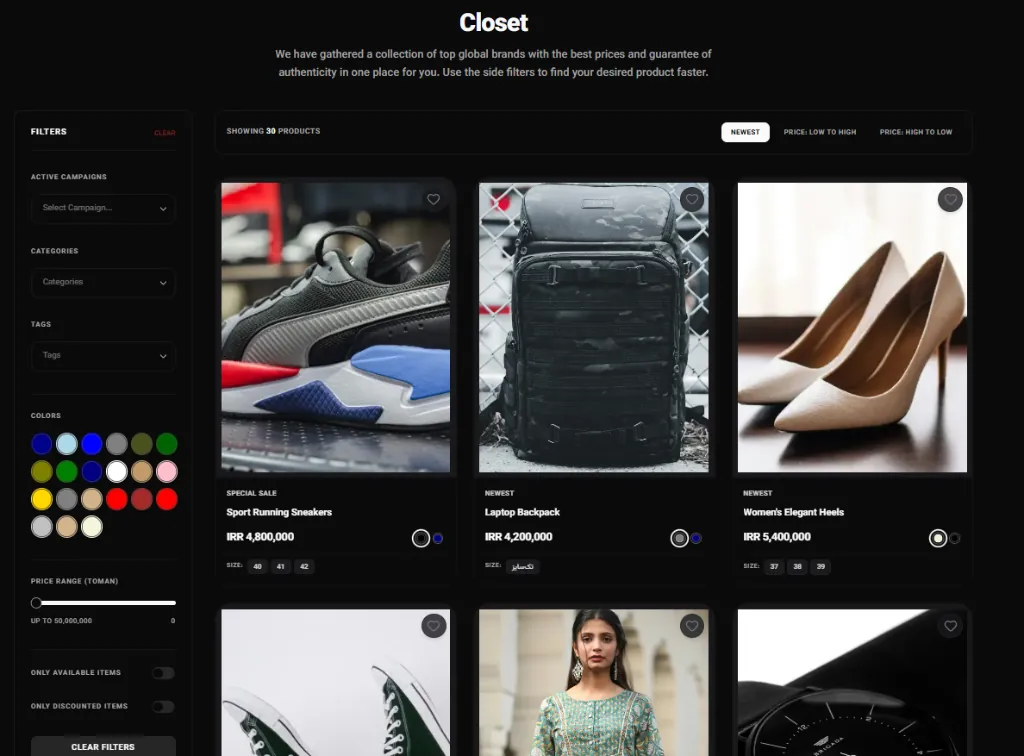
Store / Categories Page (Store Page)
Fullscreen
Shopping Cart (Cart Page)
Fullscreen
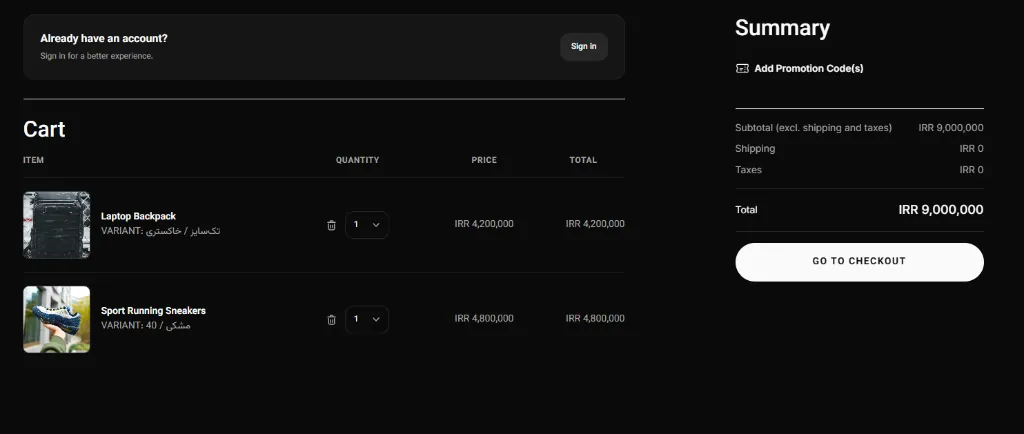
Checkout Page
Fullscreen
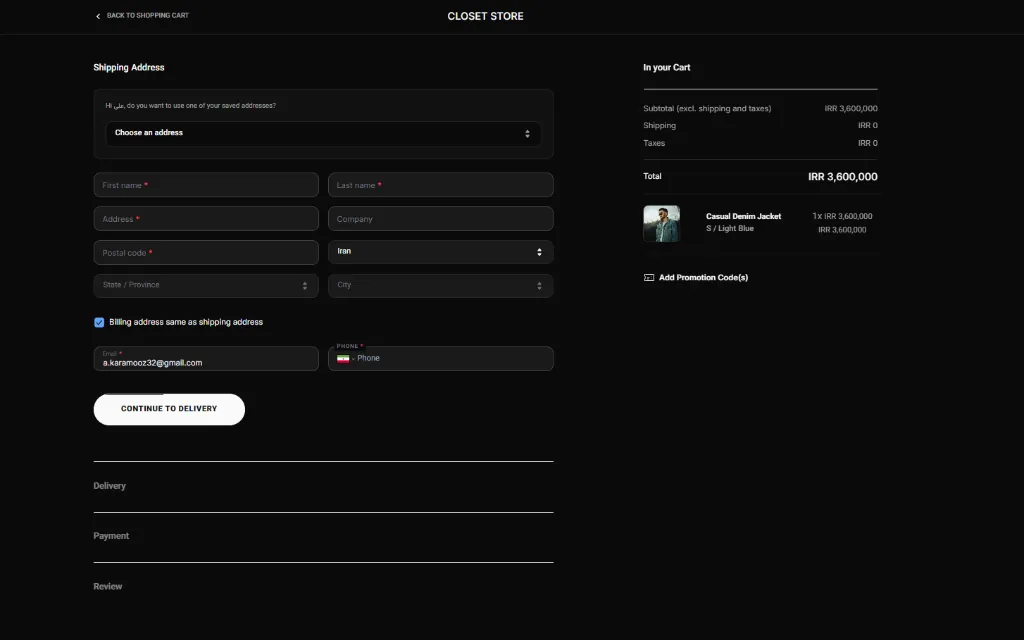
Order Details (Order Page)
Fullscreen
👤 Account Pages Settings
Login / Registration Form (Login Page)
Fullscreen
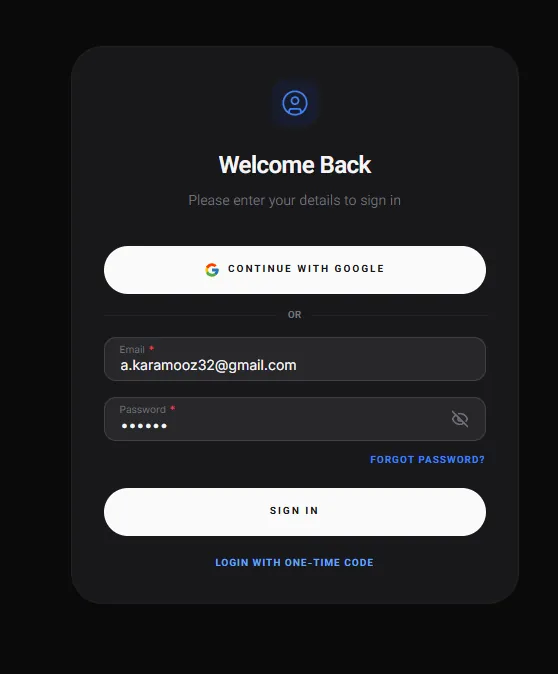
User Dashboard (Profile Page)
Fullscreen
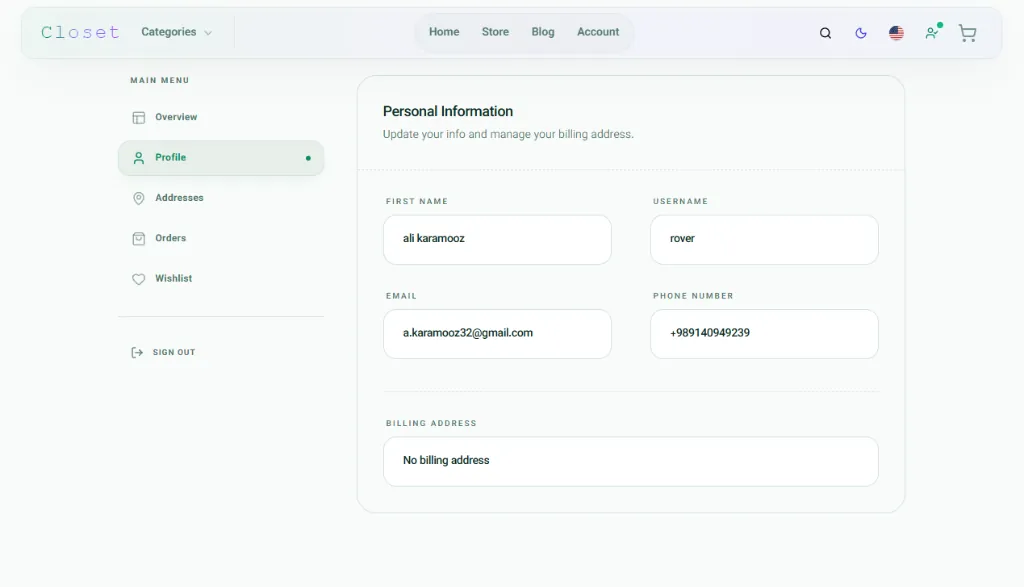
⚙️ Other UI Settings
Site Background
Fullscreen
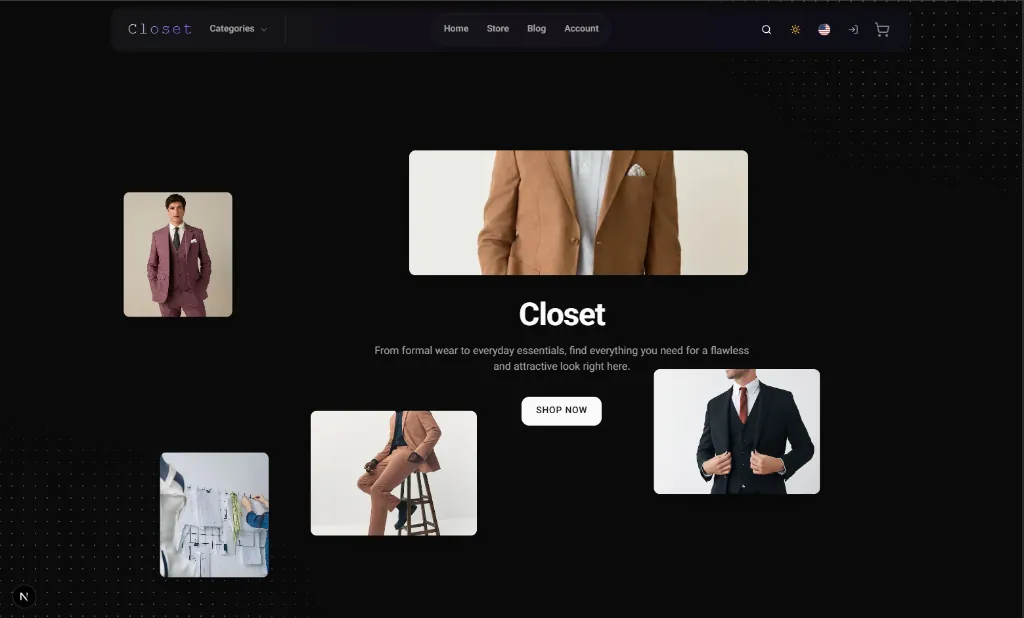
Mobile Bottom Nav Bar
Fullscreen

Changes Take Effect Immediately
After saving settings in Strapi, the home page webhook fires automatically. For other pages using cached data, you may need to manually trigger the relevant webhook or wait for the cache to expire.
Modular Blocks Catalog & Homepage Styles
To view and select styles for the 6 homepage blocks (Hero, Showcase, Features, etc.), see the Modular Blocks guide.